


First, switch on and off
Press and hold the "Test" button on the side of the instrument for a long time to turn on and off the instrument, accompanied by a "click" sound.
Calibration page
Turn on the instrument and enter the calibration page automatically. Press the “Test” key to perform the automatic calibration. You hear a “Beep” sound and the words “Calibration successful” appear, indicating that the calibration was successful. The calibration passes, and enters the "standard test" page, as shown in the figure below.
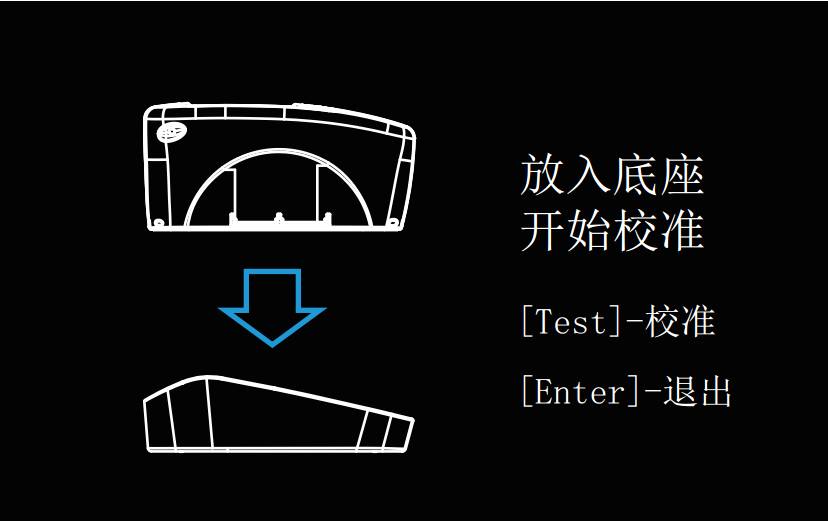
Note: Calibration is required during the measurement. You can go to the "Main Page" and select the "Calibration" icon. The operation is the same as above.
Third, the main menu page
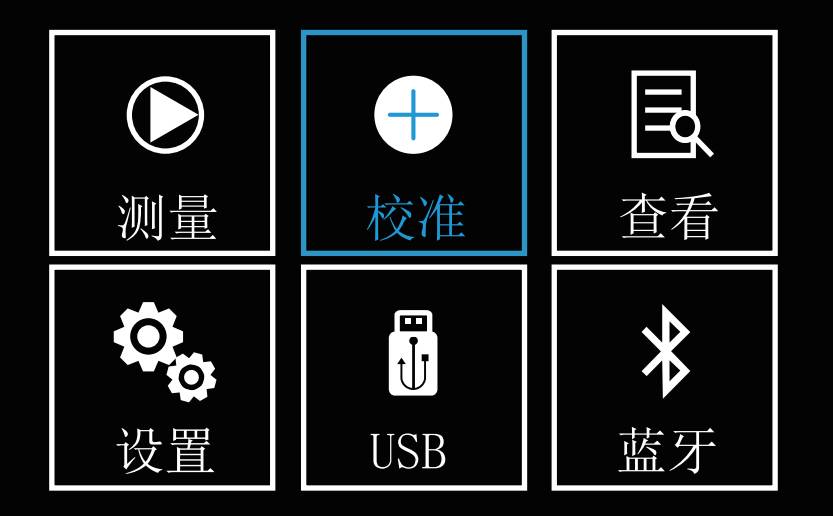
The “Main Menu” page is shown in the figure below. You can switch between “Measure”, “Calibration”, “View”, “Settings”, “USB”, and “Bluetooth” by pressing the “Up” and “Down” keys Press "Enter" to confirm. Press the "Test" key to return to the previous step.
Fourth, the measurement page
On the main page, press the Up and Down keys to select the “Measure” icon, and then press the “Enter” key to enter the “Measure” page. Under this page, the user can measure the gloss information of the sample. You can also measure the gloss difference between the sample and the standard sample, and check the judgment of whether the sample is qualified or not. You can choose to save and print the test results by using the Up and Down keys.
Five, standard test
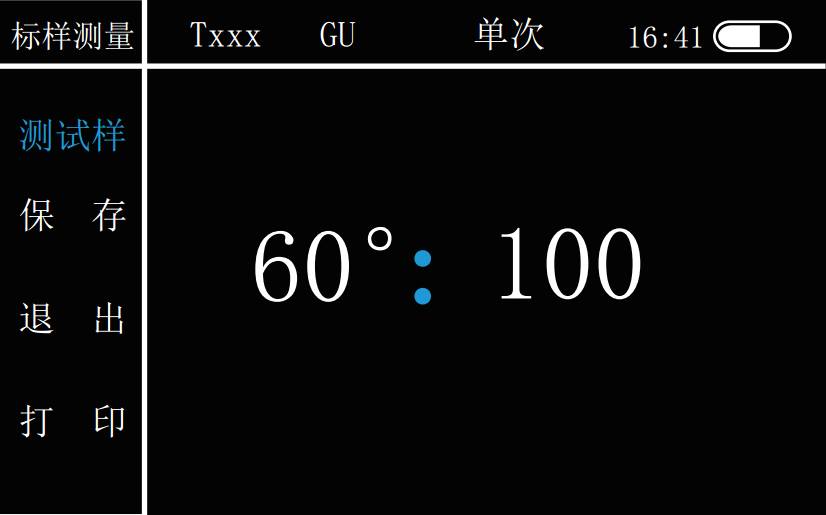
In the main menu, select the “Measure” icon by “Up” and “Down” and press the “Enter” key to enter the measurement page. The system defaults to the Standard Test page, as shown in the following figure. Press “Test” to test the standard sample. After hearing the “Beep” sound, the test is complete and check the test results. Use the "Up" and "Down" keys to select "Save" and "Print" for the test results.
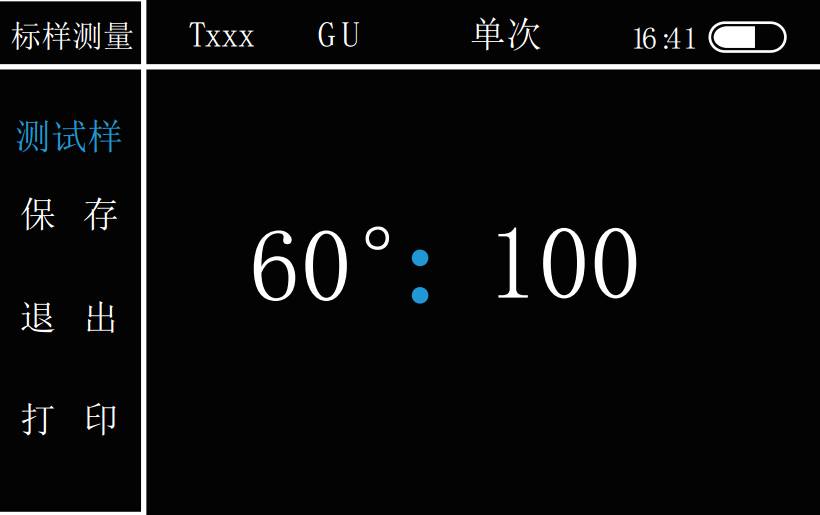
Save: After the test is completed, use the "Up" and "Down" keys to select "Save" the test results and press the "Enter" key to confirm. A pop-up window as shown in the figure below appears.
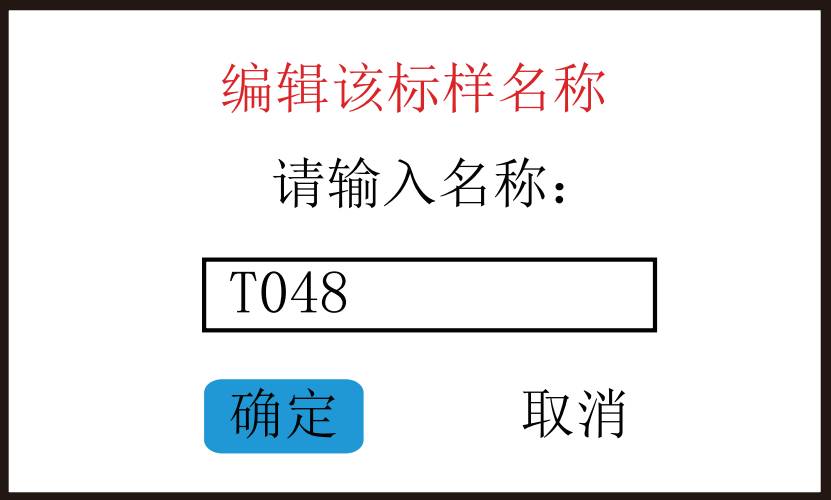
Select the sample name with the "Up" and "Down" keys, and press the "Enter" key to confirm. Use the "Up" and "Down" keys to modify the corresponding values and characters (value range is 0-9, letters are AZ), Press "Enter" to confirm. After editing is complete, press the "Test" key to exit editing, and then determine whether to confirm the modification.
Print: "Up" and "Down" keys select "Print" and press "Enter" key to confirm.
Six, sample test
After the above standard sample test is completed, use the "Up" and "Down" keys to move the option to "Test Sample", press "Enter" to confirm, and enter the "Sample Test" interface as shown in the figure below. This interface uses the current test data as the standard sample. Press the "Test" key to test the sample. After hearing the "beep" sound, the test is completed and the gloss test result is displayed. Same as the standard sample, the name of the sample is displayed as "S ×××".
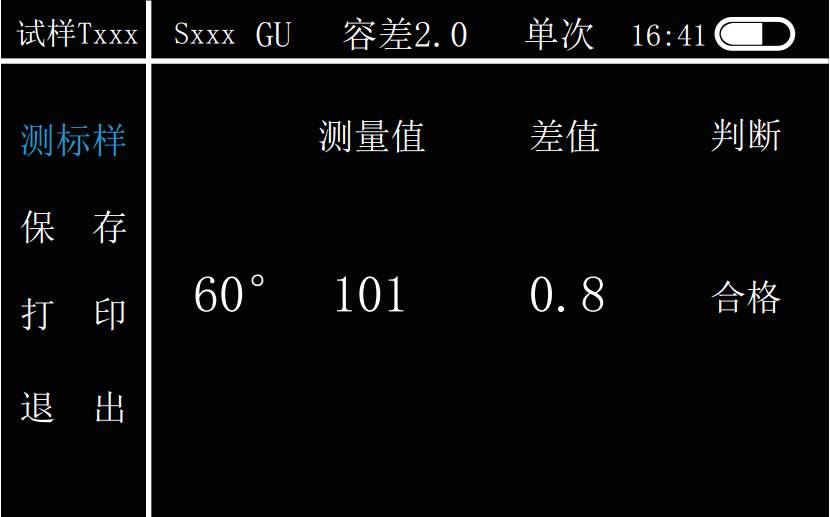
In the "Data View" interface, you can also perform gloss measurement. Use the "Up" and "Down" keys to select an existing standard, press the "Enter" key to enter the selection menu, and select "Load this standard", as shown below.
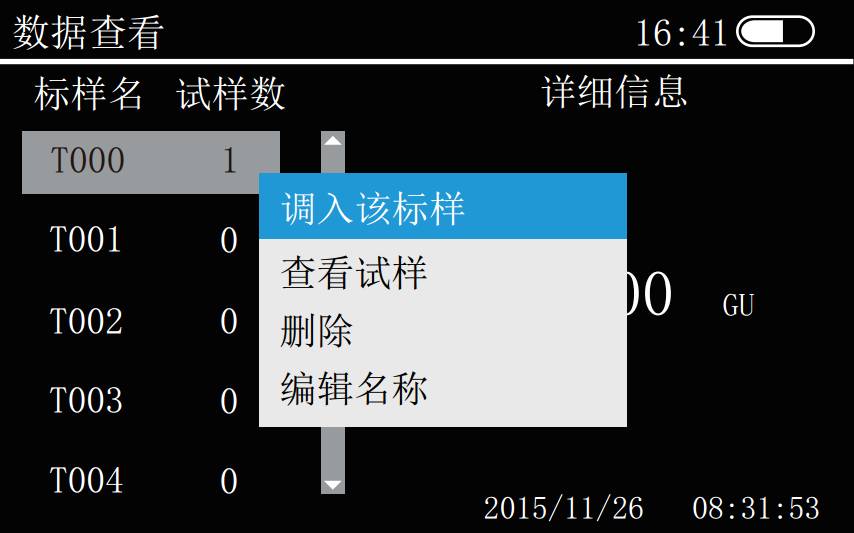
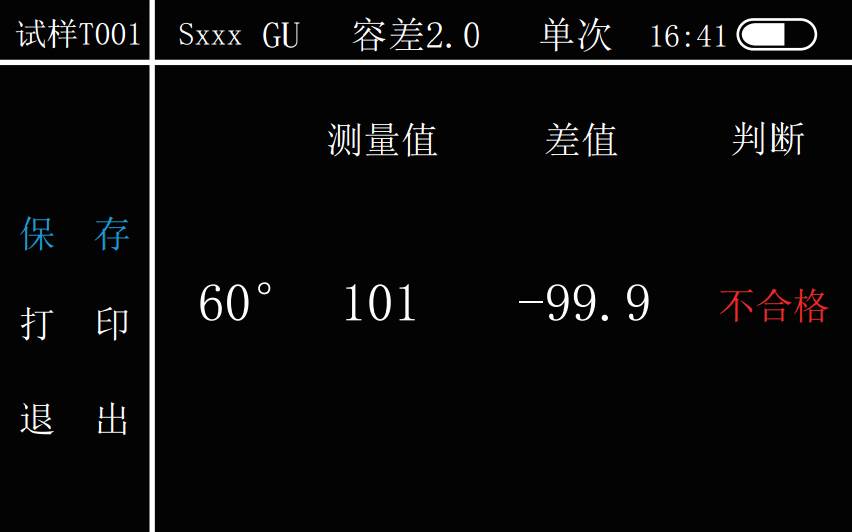
Enter the “sample measurement interface” under the standard sample, as shown below. Press the "Test" key to measure. After the "Beep" sound, finish the gloss measurement and check the test results. Press the "Test" key for a new gloss measurement.
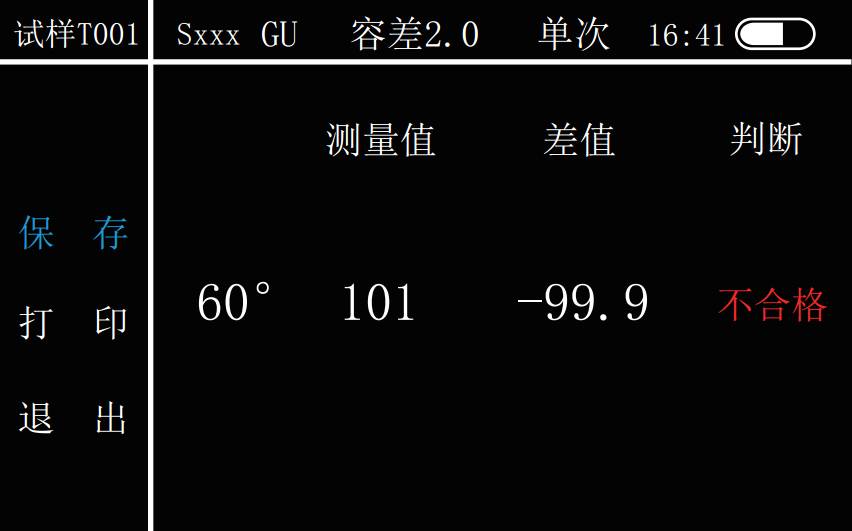
Note: Please set tolerance before gloss test. (See Settings-Measurement Settings-Tolerance) In the "Sample Measurement" page, you can also select "Print", "Save", and "Exit" the test results by using the "Up" and "Down" keys. Press "Enter" to confirm. The operation of saving the sample is the same as that of the standard sample.
Data review
On the main menu interface, select the “View” icon by “Up” and “Down” and press the “Enter” key to confirm. The “Data View” page is displayed as shown in the figure below. In this interface, the user can view the saved standard samples and sample information.
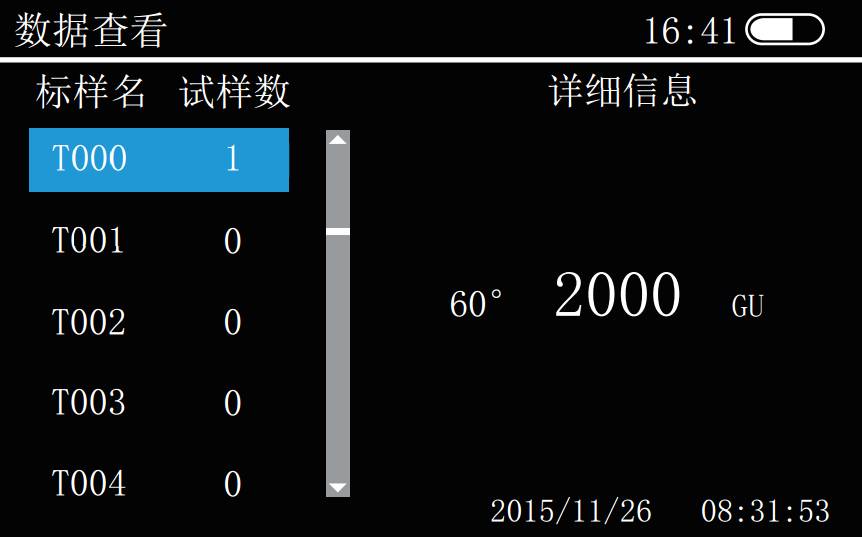
Press the "Up" and "Down" keys to select the standard to be viewed, and press the "Enter" key to pop up the menu bar, as shown in the figure below. With the "Up" and "Down" keys, select to load the standard, view the sample, delete, edit Name, etc.
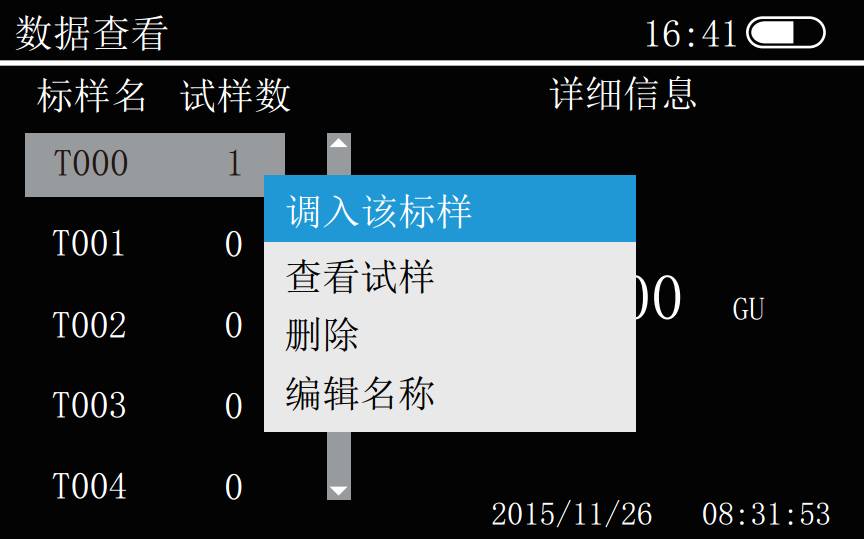
Load the standard sample: You can test the sample under this standard on this interface. Press the “Test” key to perform multiple sample tests, and you can perform “save” and “print” operations on the test data.
View sample: View the test records of all samples under the selected standard. Select the sample with the "Up" and "Down" keys and press the "Enter" key to confirm, as shown in the figure below. The selected test records can be deleted, deleted all, and edited in the pop-up menu box.
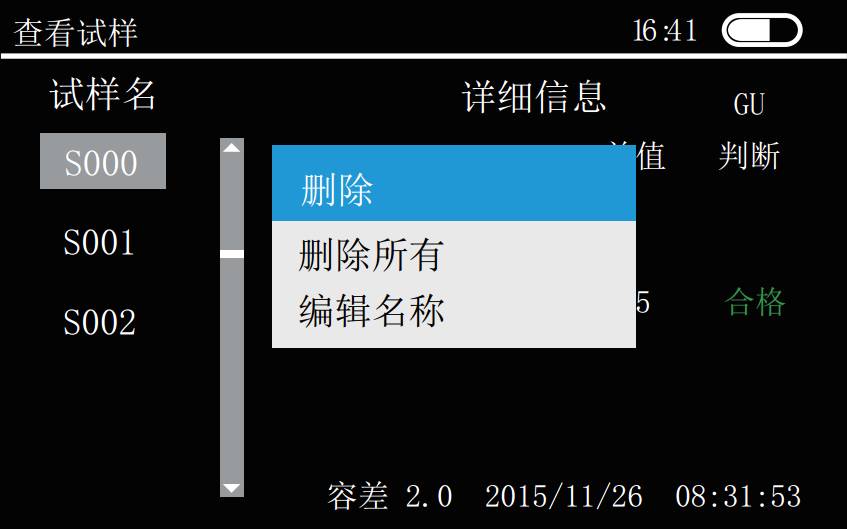
Delete: All test records of this sample will be deleted.
Delete all: All test records of the sample under this standard will be deleted.
Edit name: please refer to the operation (test-standard test-save-edit name).
Setting
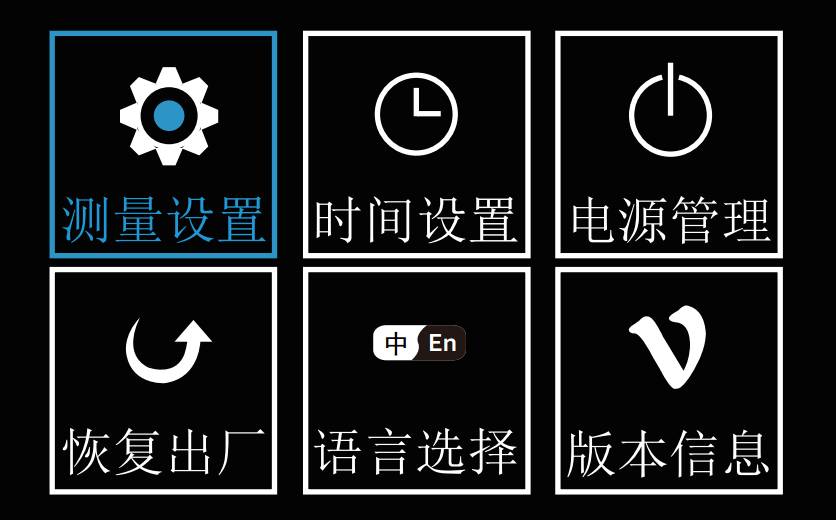
Select the "Settings" icon on the main menu interface and press the "Enter" key to enter the "Settings" page, as shown in the figure below. Operate with "Up" and "Down" keys: "Measurement Setting", "Time Setting", "Power Management", "Restore Factory", "Language Selection", "Version Information", etc., and then press "Enter" confirm.
Nine, measurement settings
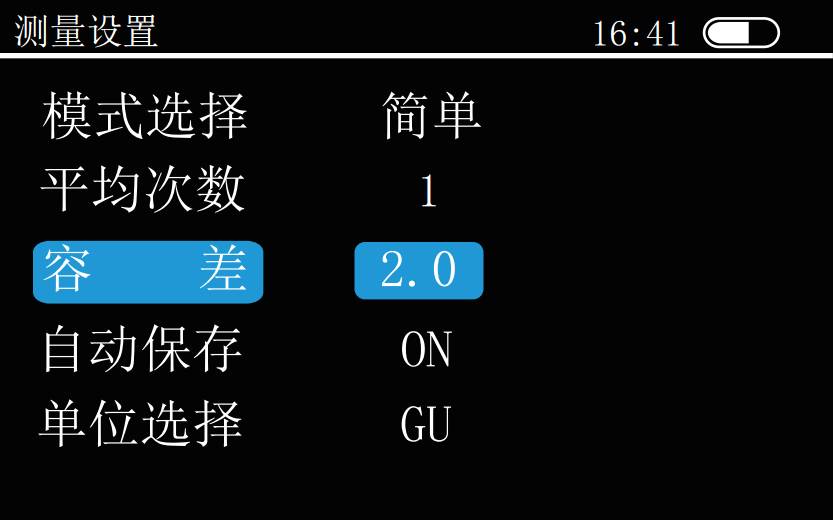
Press the "Up" and "Down" keys to select the "Measurement Settings" icon and press the "Enter" key to enter the "Measurement Settings" interface, as shown in the figure below.
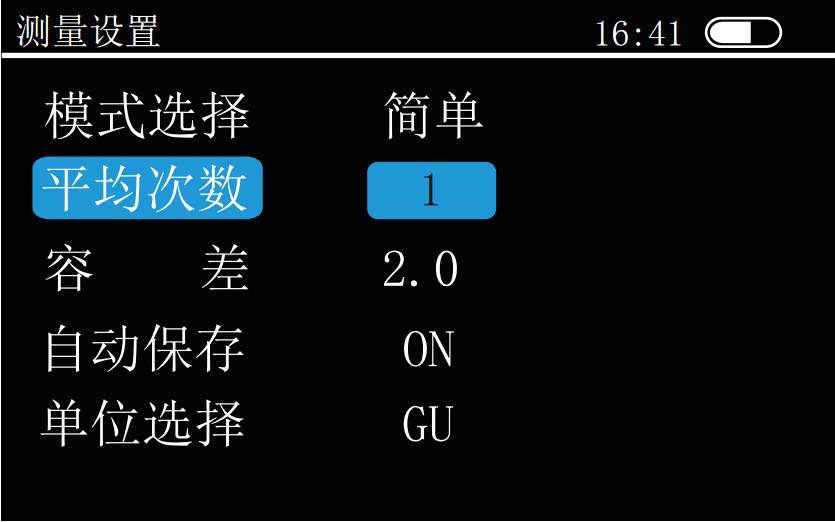
Use the "Up" and "Down" keys to select the settings and press the "Enter" key to confirm.
Mode selection: press the "Enter" key to switch between "statistics" and "simple" mode average times: press the "Enter" key to select, change the value with the "Up" and "Down" keys, and press the "Enter" key to confirm .
Tolerance: Press the "Enter" key to select, change the value with the "Up" and "Down" keys, and press the "Enter" key to confirm.
Auto save: press "Enter" key to switch between "ON" and "OFF" save mode.
Unit selection: Press "Enter" key to switch between "GU" and "REF" units.
Ten, time settings
Press the "Up" and "Down" keys to select the "Time Setting" icon and press the "Enter" key to enter the "Time Setting" interface, as shown in the figure below.
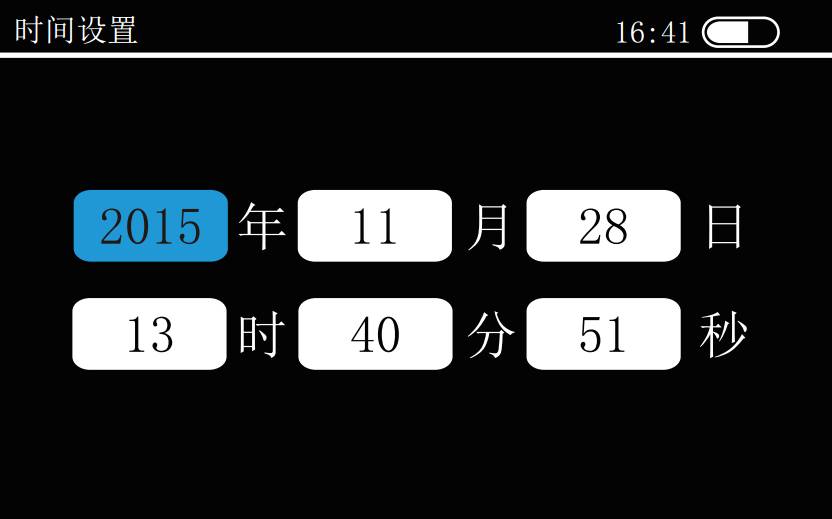
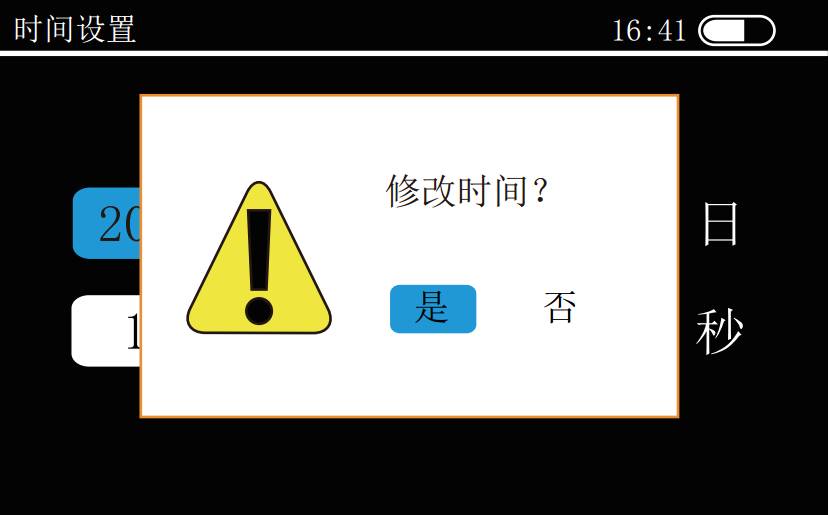
Under the time settings page. Press the "Up" and "Down" keys to move the numbers corresponding to the blue squares, and then press the "Enter" key. The numbers corresponding to the blue squares can be adjusted. Use the "Up" and "Down" keys to modify the time parameters. , Then press "Enter" to confirm. Press the "Up" and "Down" keys to move the blue square to other numbers that need to be modified. The modification is the same as above. When all the numbers have been modified, press the "Test" key to enter the save page, as shown in the figure below.
Eleven, power management
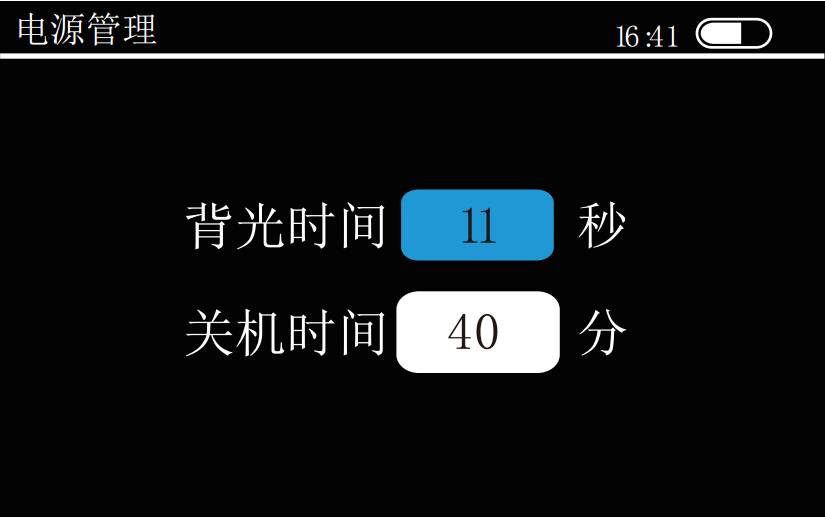
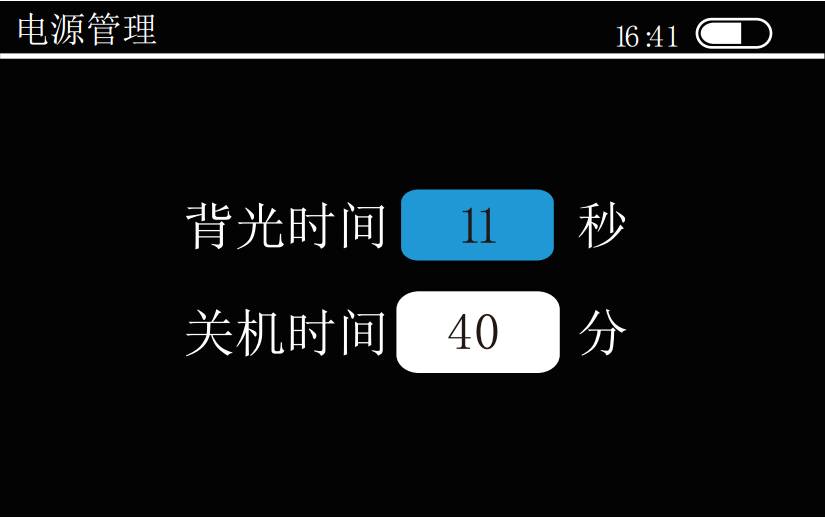
Select the "Power Settings" icon with the "Up" and "Down" keys, and press the "Enter" key to enter the "Power Settings" interface, as shown in the figure below.
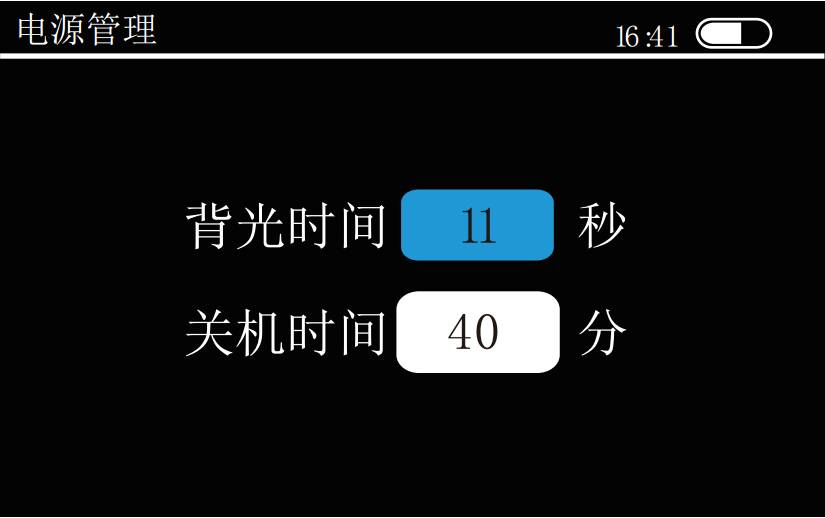
Press "Up" and "Down" on the "Power Settings" screen to move the number corresponding to "", and then press "Enter". The number corresponding to "" can be adjusted. Modify it by pressing "Up" and "Down" The number corresponding to "" adjusts the backlight and off time. The backlight time adjustment range is 0-60 seconds with an interval of 5 seconds. The off time is 0-60 minutes with an interval of 1 minute. After modification, press "Enter" key to confirm.
Note: When the backlight time is set to 0, it means that the backlight will not be turned off. When the backlight time is set to 0, it will not turn off automatically.
Twelve, restore the factory
Select the "Restore Factory" icon by pressing the "Up" and "Down" keys, and press the "Enter" key to enter the "Restore Factory" interface, as shown in the figure below, move the blue square (press the "Up" and "Down" keys), When the cursor moves on the blue square, press "Enter" to confirm to restore the data in the memory to the factory settings. When the cursor moves to "No", press the "Enter" to cancel the exit.
Thirteen, language selection
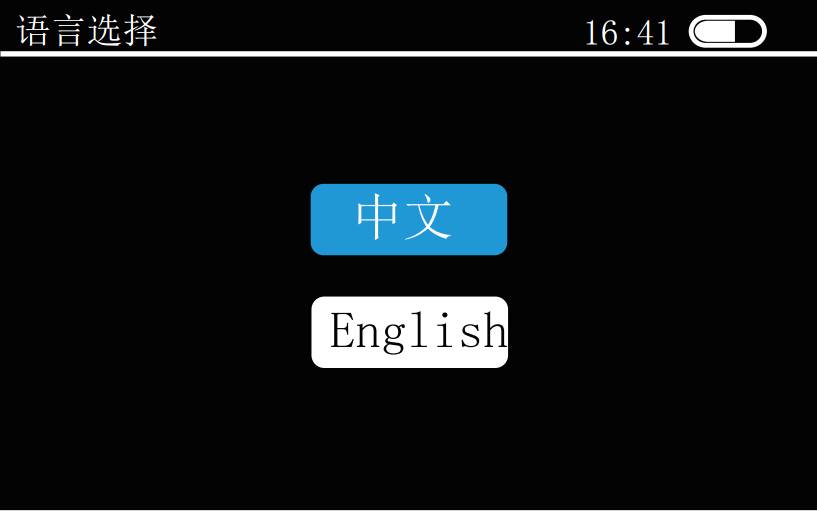
Select the "Language Settings" icon by pressing the "Up" and "Down" keys and press the "Enter" key to enter the "Language Settings" interface, as shown in the figure below. Select language by “Up” and “Down”, then press “Enter” to confirm. This instrument is available in Chinese and English.
Fourteen, version information
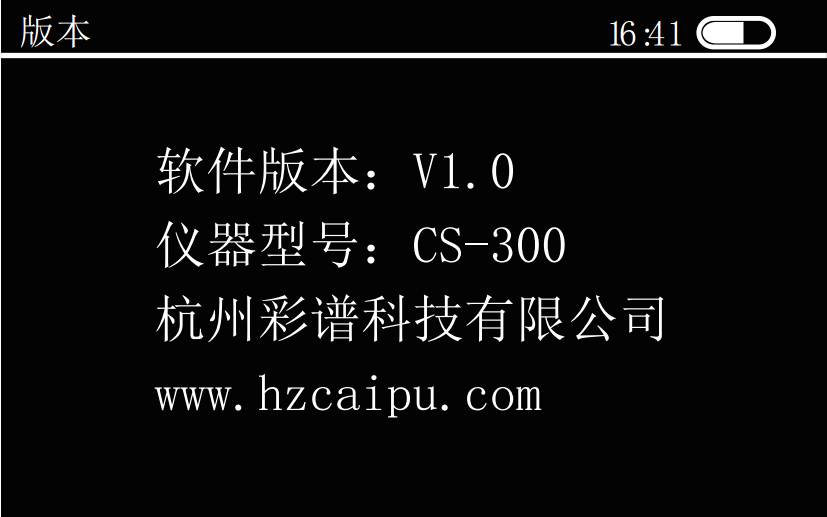
Press the "Up" and "Down" keys to select the "Version Information" icon and press the "Enter" key to enter the "Version Information" interface. You can see the version details of the gloss meter.
Fifteen, USB communication
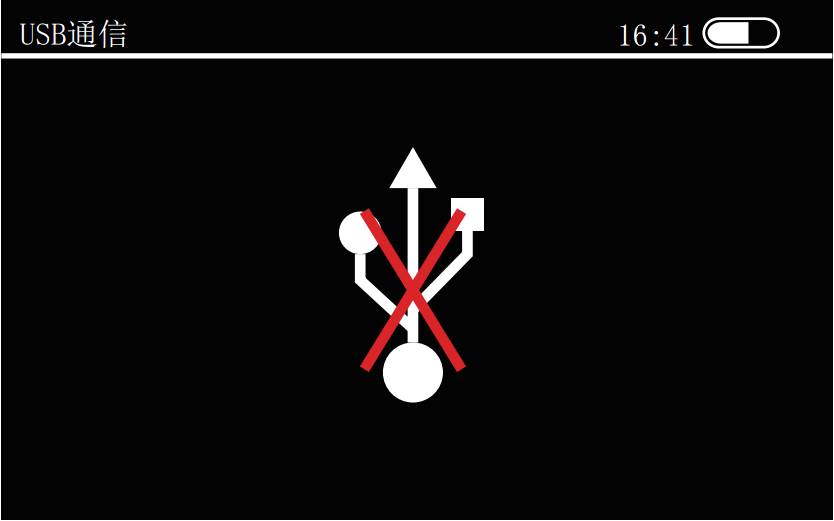
On the main interface, use the "Up" and "Down" keys to move the cursor to "USB" and press the "Enter" key to confirm. The "USB Communication" interface is entered. Connect the instrument to the PC using the USB cable provided with the instrument, and install the driver as instructed. After the correct installation, you can operate on the PC. When the USB cable is not plugged into the USB interface or the USB cable interface is not in good contact, insert the USB interface or re-plug it to connect normally and perform the operation of the host computer.